Available nowv0.1.2

Encrypted DNS.
Just press Start.

Encrypt your website address lookups to make them harder to read or tamper with on the network. Get started with settings already in place.

Free to useWindows / Linux / macOS

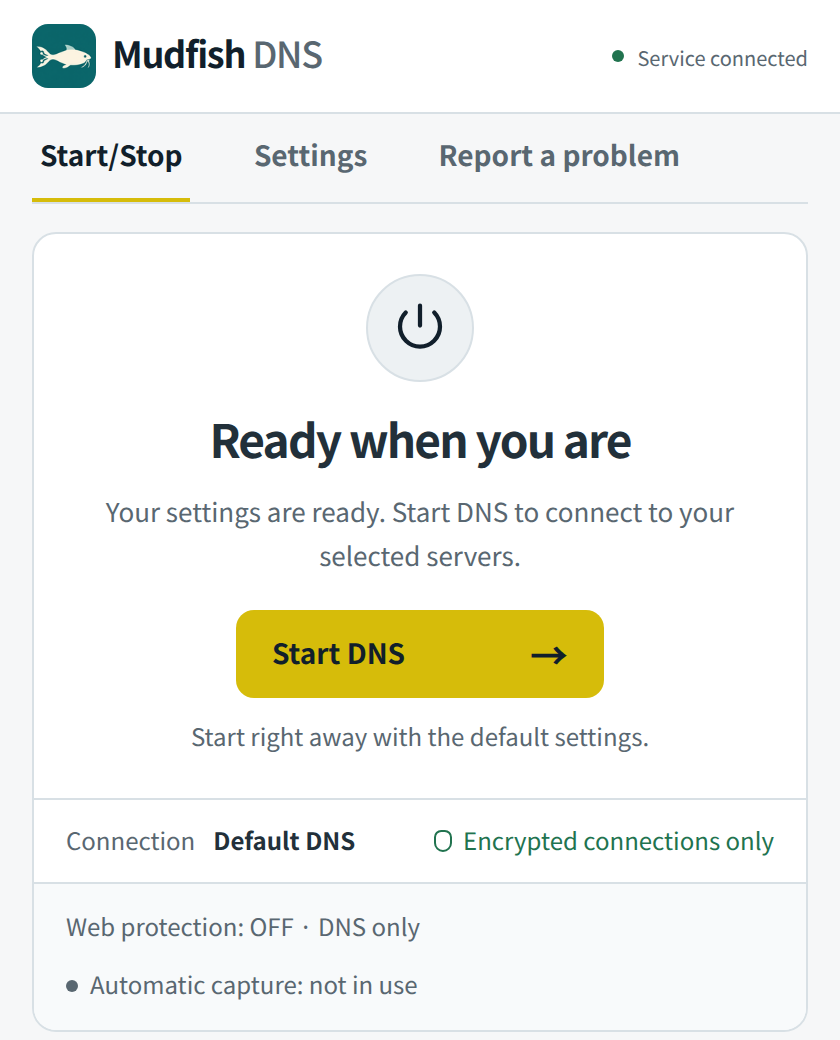
Mudfish DNS app showing the Start DNS button and default settings
Example app screens · Windows defaults

Free to use

Servers already configured

You choose when to start and stop

A simple start

Open the app. Press Start.

Use the defaults without looking up or entering server addresses.

  1. Install and open

    Install the app for your operating system and open Mudfish DNS. Installing it does not turn on DNS protection.

  2. Press Start DNS

    Send requests to the configured encrypted DNS servers. On first start, macOS asks for consent to background operation and approval of the extension.

  3. Browse as usual

    DNS keeps running when you close the window. Press Stop DNS in the app or tray whenever you want to turn it off.

Protecting address lookups

Your DNS requests.
An encrypted connection.

Before a website opens, your computer asks a DNS server for its address. Mudfish DNS sends that request over an encrypted connection.

Encryption by default

Encrypted DNS servers from Cloudflare, Quad9 and Google are configured by default. Server certificates are verified, too.

Another server if one fails

If a server fails, requests are retried with another server. The defaults do not automatically fall back to unencrypted DNS.

Optional on Windows / Linux

Choose which web connections to protect.

Web protection may help you connect to sites on some restricted networks. Apply it to selected apps and domains, or add exceptions.

Coverage and technical details
Enable when needed
Web protection is off by default.
Choose what to protect
Select individual apps and domains.
No certificate installation
HTTPS content is not decrypted.

MUDFISH DNS v0.1.2

Get started on your computer.

Choose the app for your operating system.

Windows

Windows 10 2004 or later · x64

MSI installer

Download for Windows
Before installing

Requires build 19041 or later. An internet connection is needed during installation if WebView2 is not already installed. Open Mudfish DNS from the Start menu.

Remove a previous 0.1.0 EXE installation from Windows Apps & features before installing the MSI. Your settings are preserved.

Linux

Debian / Ubuntu · x64

DEB package

Download for Linux
Before installing

Open Mudfish DNS from your applications menu. Web protection and app/domain selection require Linux 6.6 or later with eBPF. App selection also requires cgroup v2 and kernel BTF.

macOS

macOS 13 or later · Apple Silicon

DMG installer

Download for macOS

Supports DNS protection. Web protection and app/domain selection are not yet supported.

Before installing

On first start, consent to background operation and approve the system extension and DNS Proxy in macOS. DNS protection continues after exiting the app; press Stop to turn it off.

FAQ

A few things to know.

Is it free to use?

Yes. Mudfish DNS is free.

Does installing it change my DNS right away?

The app is stopped after installation. Protection turns on when you press Start. On Stop, Windows/Linux restore the system DNS settings changed by the app, and macOS disables the DNS Proxy.

Does closing the window stop DNS?

Closing the window hides it in the tray. The DNS service keeps running even if you exit the tray app. Press Stop first to turn DNS off.

Is recent domain recording enabled by default?

Recording is off by default. When enabled, it shows up to 32 recent DNS lookups and web connections; macOS shows DNS lookups. On Windows/Linux, web processing events are also written to service logs. Clearing the on-screen list does not delete those logs.

What if I run into a problem?

Describe the issue on the Report a problem page, review the diagnostics, then send your report. Recent DNS lookups and web connections are included only if you choose to include them.

Coverage and technical detailsDoH / DoT / SOCKS5

DNS connections and caching

DoH and DoT verify server certificates. Requests are distributed across servers by weight and retried on failure. Responses are cached for their TTL; clear the cache in Settings.

Mudfish servers and proxies

The legacy Mudfish UDP/TCP protocols are also supported, without server authentication. A SOCKS5 proxy can be used for DoH, DoT, TCP DNS and web connections, but cannot be combined with UDP upstreams.

Web protection coverage

On Windows/Linux, web protection splits HTTP Host and HTTPS TLS SNI data on TCP ports 80/443. It does not cover HTTP/3, QUIC or domains inside ECH. Results depend on the network; reopen existing connections after applying settings.

DNS protection coverage

Requests may use plaintext if you explicitly allow plaintext DNS servers or exclude domains on Windows/Linux. Already encrypted DNS requests, such as an app's own DoH, are not intercepted.